Dashboard Sections
The dashboard allows you to create and manage your AI Assistants (Genies), enabling you to track visitor engagement, identify areas for improvement, flag issues, receive notifications and customise each Genie to reflect your company’s branding.
Each Genie has its own dedicated dashboard, meaning that if you have multiple Genies, you'll manage them through separate dashboards. This setup lets you personalise each Genie independently and monitor their performance individually.
myGenie Dashboard Structure
Each dashboard has 5 main tabs:
myGenie allows you to create an AI Assistant that engages with your users better than a human agent. People expect personal conversations and instant answers... With myReach's Genies you're able to do that, and more. The customisation options are endless.
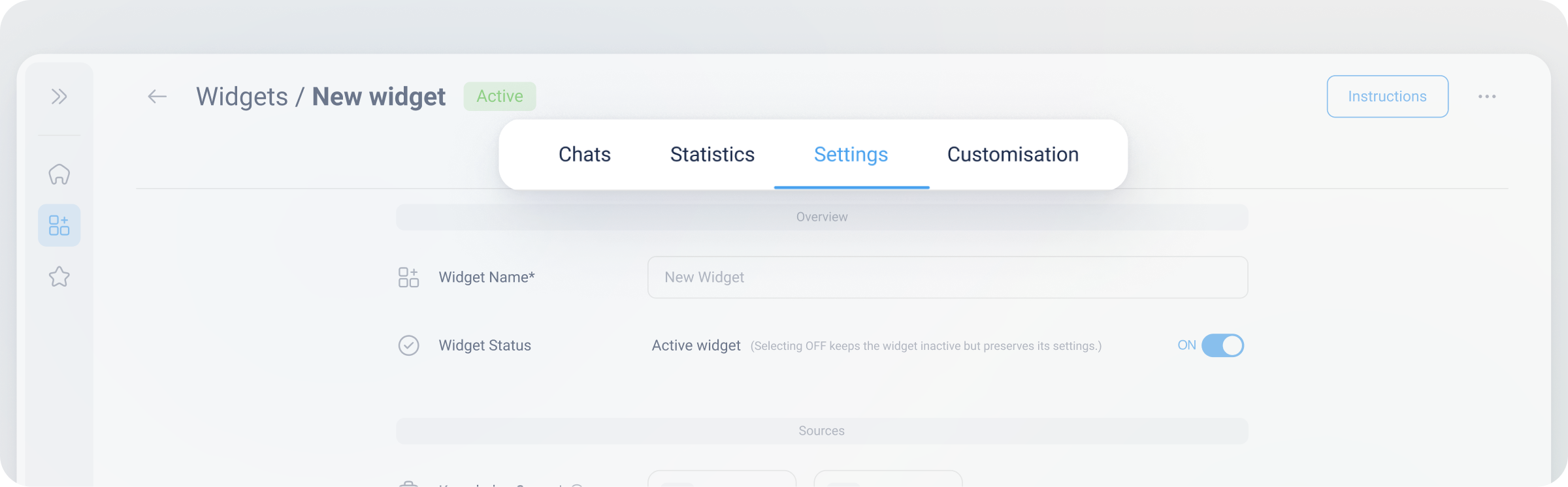
Top Right Options
There are two key functions in the top right of the screen, that you can access from any page in the Genie's dashboard. Here's a breakdown of these options:
-
Test: This button opens the Genie in a full page preview, so you can see how it will look like once you share it with others. At the top there are two options:
- Full screen chat: This is how others will see the Genie once you share the Genie's link with them.
- Embedded chat: If you embed the Genie into yuor website, this is what it will look like.
To find out more about testing the Genie, click here.
-
More Options: Represented by three dots "...", this button opens a modal with four additional options:
- Preview in Full Page – This is the same as the "Test" button, as it opens the Genie in a full page preview.
- Export Raw Data (CSV) – Export your data as a CSV. Once the data is exported, you receive an email with a link to download it.
- How It Works? – Access to the Handbook of myReach to learn more about myReach and all the specific features and functionalities.
- Delete Genie – A button to delete this Genie entirely. Please note, this permanently deletes the Genie and cannot be undone.